IFTA Guide & How-To
Last updated September 4, 2026
Pull fleet distance by jurisdiction for any period, drill into a single truck’s day, check the route it actually drove, and export the numbers for your quarterly filing.
This guide is for accounts with the Switchboard IFTA module enabled. If you don’t see IFTA Mileages in your menu, the module isn’t turned on for your account yet. Click here to learn more .
Step 1. Load your mileages
Open IFTA Mileages from the left menu. The page starts empty until you choose a period and load it.
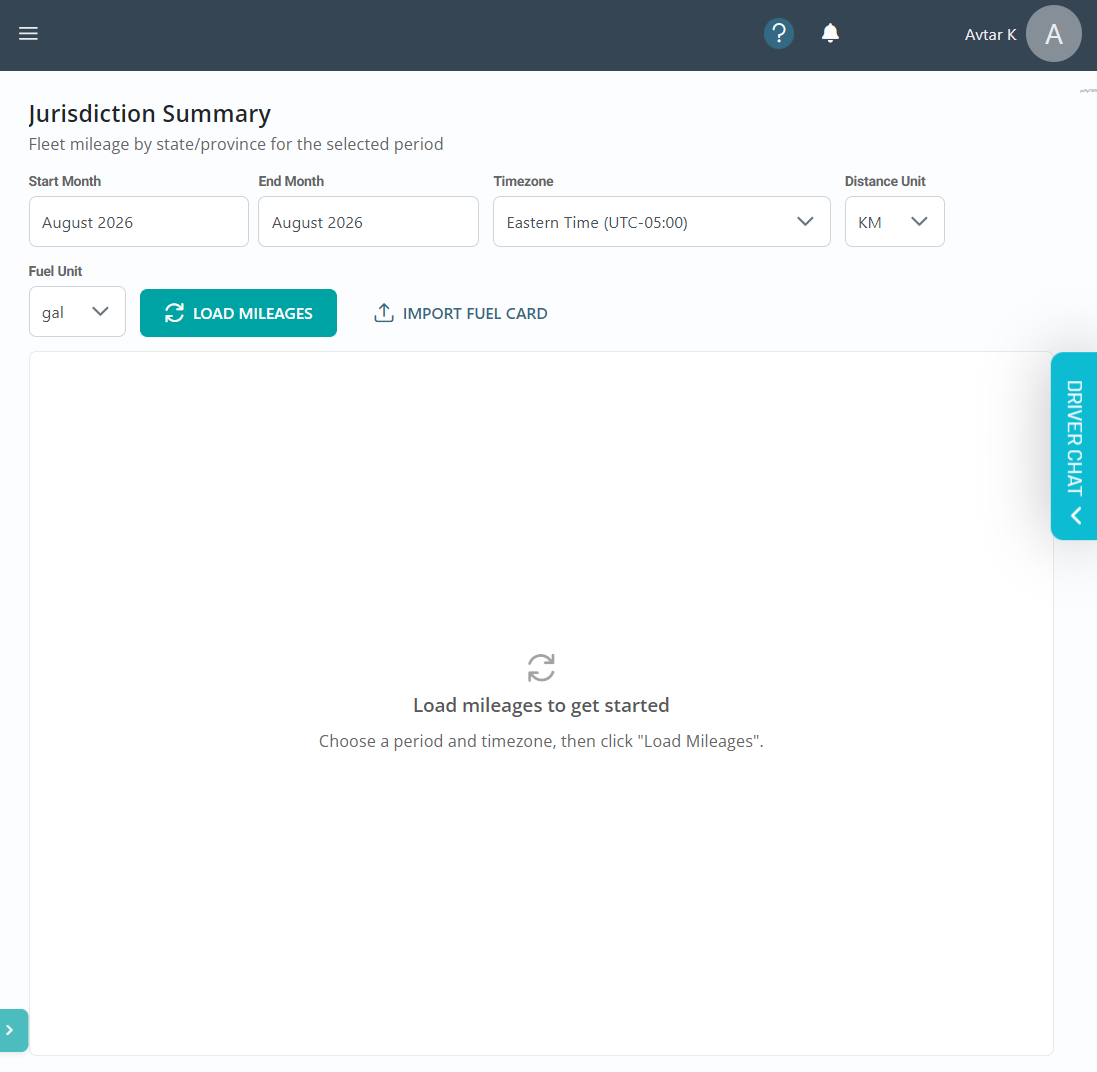
Set the period and units first, then choose Load Mileages.
| Setting | What it does |
| Start Month / End Month | The reporting period. For a quarterly filing, set the three months of the quarter — you can also load a single month or a longer stretch. |
| Timezone | Decides which calendar day a trip is counted in. Set this to the timezone your filing is based on and keep it consistent between loads, or day totals will shift. |
| Distance Unit | KM or miles. This changes every distance on the page and in your exports. |
| Fuel Unit | Gallons or litres, applied to all fuel columns. |
Choose Load Mileages to build the report. If you have fuel purchase data from a card provider, Import Fuel Card brings it in so the fuel columns fill alongside distance.
Step 2. Read the Jurisdiction Summary
This is the fleet-level view: one row per vehicle, one pair of columns per state or province.
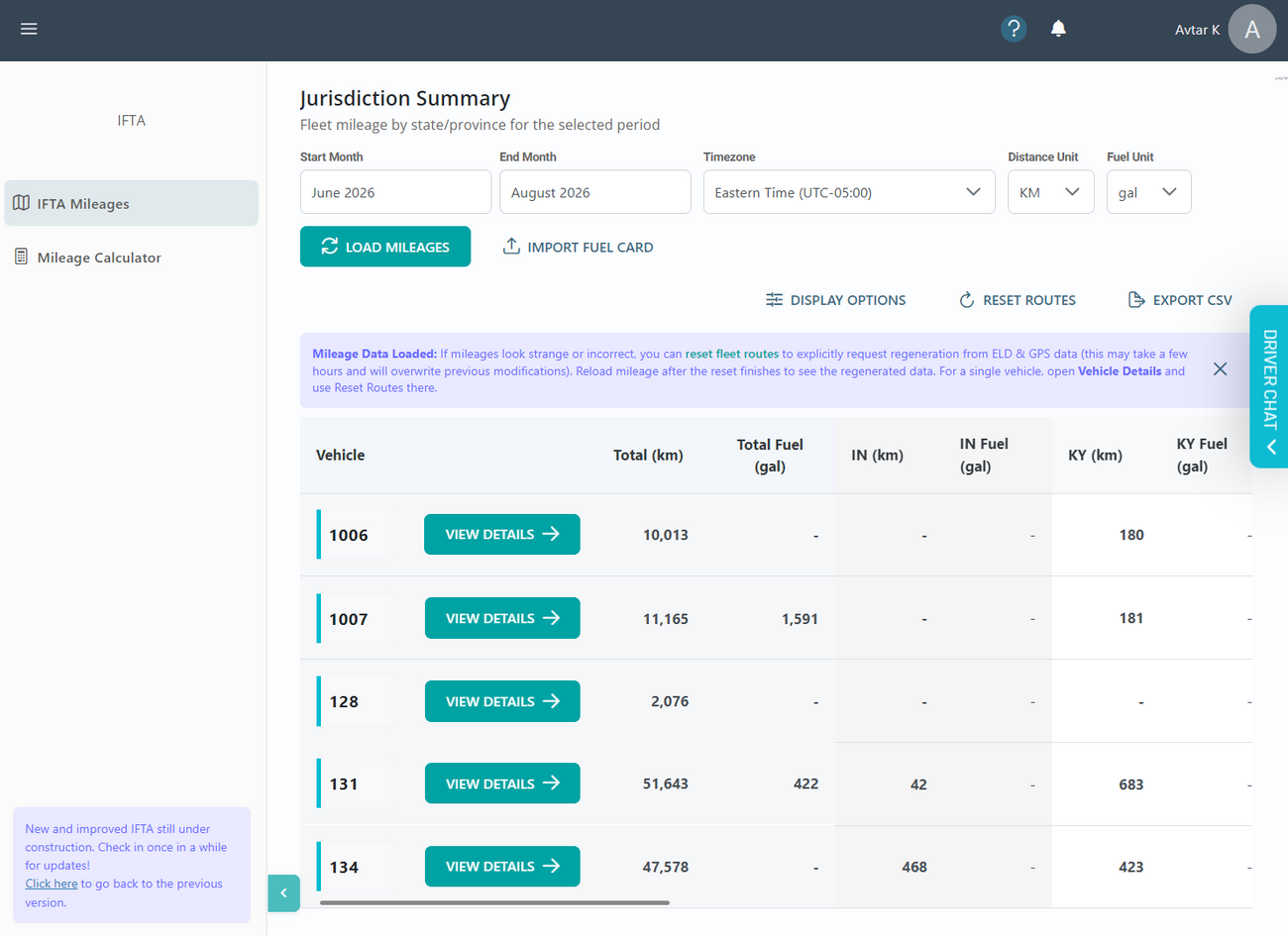
Each vehicle’s total, then distance and fuel broken out by jurisdiction. Scroll the table sideways to reach the rest of the jurisdictions.
- Total (km) is everything the vehicle ran in the period, across all jurisdictions.
- Per-jurisdiction columns appear for every state or province your fleet touched in that period. There are usually more than fit on screen, so use the horizontal scrollbar under the table.
- A dash means no distance or no fuel recorded for that jurisdiction — not a zero you need to fix.
- Display Options lets you change which columns are shown, which is the fastest way to cut a wide table down to the jurisdictions you actually file in.
Choose View Details on any vehicle to go a level deeper.
Step 3. Open a vehicle’s daily breakdown
Vehicle Details splits the period into days. This is where you audit a number that looked wrong on the summary.
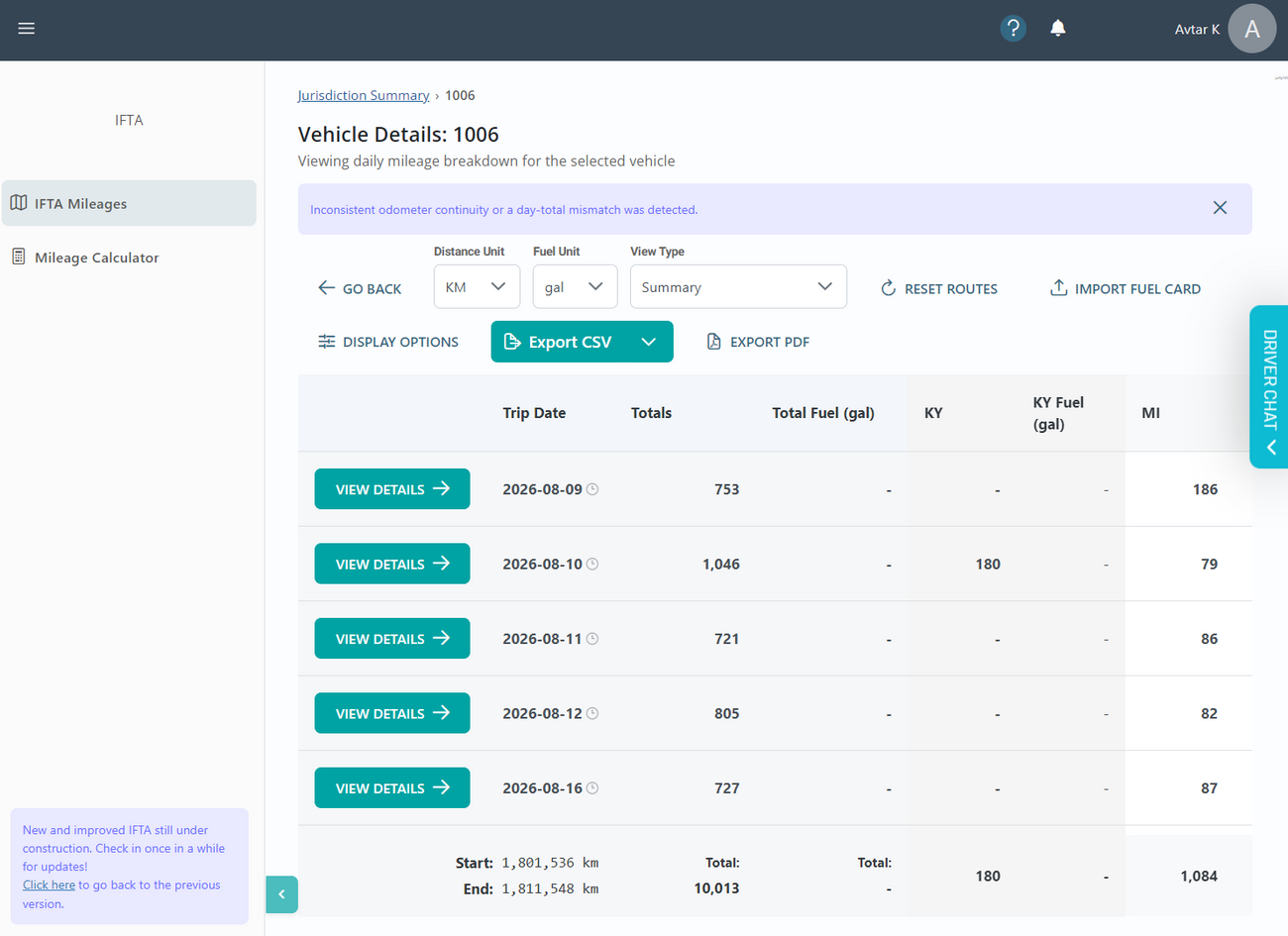
Vehicle Details for unit 1006. The footer carries start and end odometer readings and the period totals for every column.
What to look at:
- Trip Date and Totals — one row per day the truck moved, with that day’s distance and how it split across jurisdictions.
- Start and End odometer in the footer — compare the difference against the period total to sanity-check the data.
- The notice bar — Switchboard flags days where odometer readings don’t run continuously or a day’s jurisdiction figures don’t add up to its total. It’s a prompt to open those days and look, not an error that blocks your filing.
- View Type — switch between the summary table and a more detailed layout of the same period.
Choose View Details on a day to see the route behind it.
Step 4. Check the day breakdown
The day view is the evidence layer. It shows the mapped route, every jurisdiction the truck entered, and when it crossed.
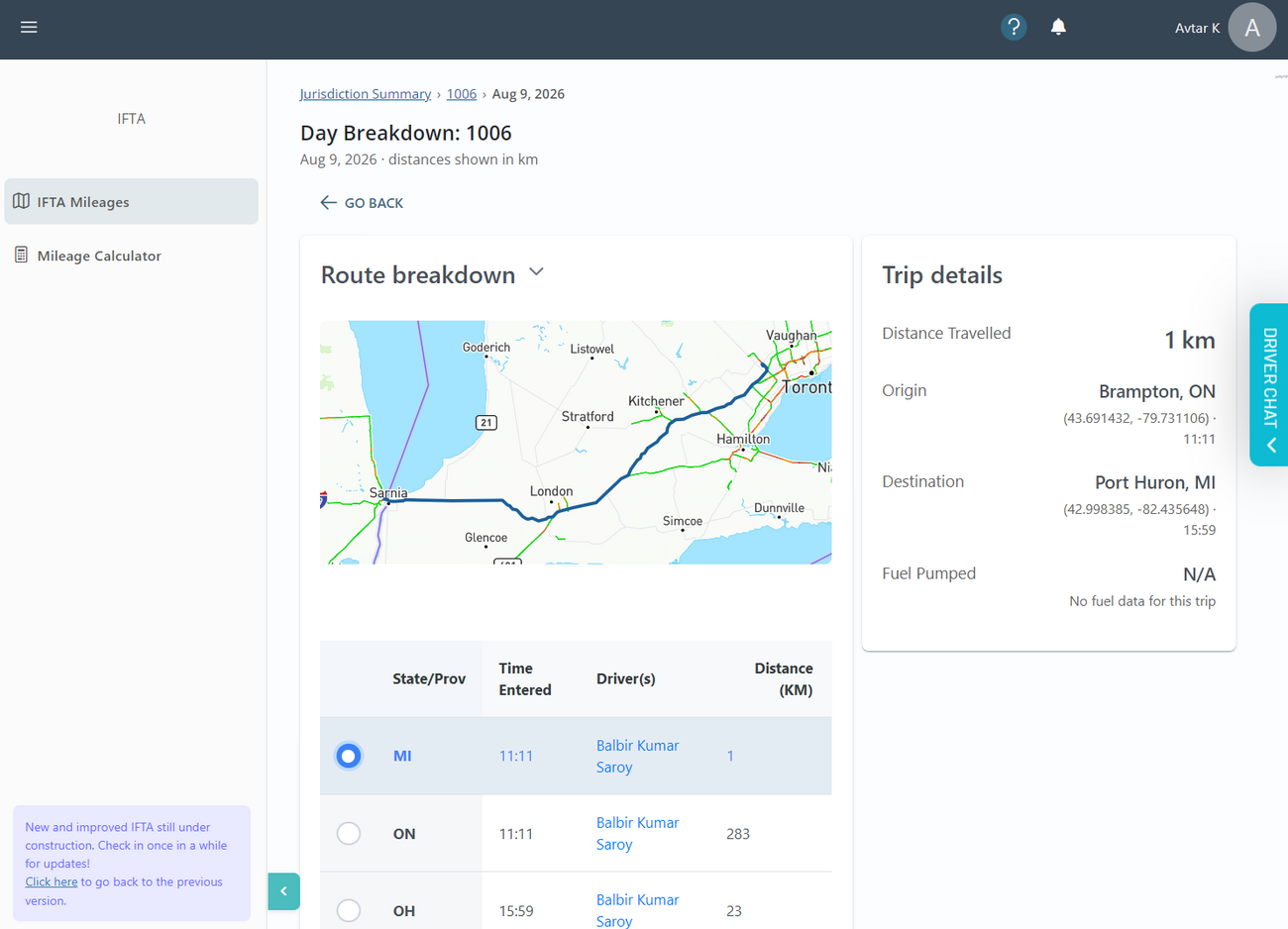
Day Breakdown for Aug 9. Selecting a row in the jurisdiction table updates the Trip details panel on the right.
- Route breakdown — the map traces the path driven that day. Below it, each row is a jurisdiction the truck entered, with the time it crossed, the driver on duty and the distance run inside that jurisdiction.
- Trip details — select a row to see distance travelled, origin and destination with coordinates and timestamps, and fuel pumped. Where no fuel was recorded for the trip, the panel says so rather than showing a zero.
Short distances like a single kilometre in a jurisdiction are normal — they’re the sliver driven between a border crossing and the next one, and they still belong in your filing.
Exporting your mileages
Export is available at both the fleet level and the vehicle level, and the export always matches what’s on screen — the same period, the same distance and fuel units, and the columns you left visible in Display Options. Set those before you export.
Export CSV
The working format. Use it to feed your filing software or your accountant’s spreadsheet, to re-total figures yourself, or to keep the raw per-jurisdiction data. The dropdown arrow beside the button offers export variants, so check it when you need a different level of detail than the default.
Export PDF
The record format. It keeps the layout you’re looking at, which makes it the one to file with your quarterly return, hand to an auditor or attach to a records request. It’s available on Vehicle Details, so you can produce a clean per-truck daily breakdown for the period.
If a number looks wrong, fix it before you export — an export is a snapshot of the data as it stands at that moment.
Resetting and Recalculating your Routes
Mileages are built from your ELD and GPS records once, then kept. If a vehicle’s trips look wrong — a jurisdiction missing, a route that doesn’t match where the truck went, distances that don’t line up with the odometer — Reset Routes throws the stored version away and asks Switchboard to rebuild it from the underlying ELD and GPS data.
| A reset overwrites previous modifications. Any manual corrections made to those routes are replaced by the regenerated data and can’t be recovered. If you’ve hand-edited trips, export a CSV first so you have a copy. |
Where to run it
- Whole fleet — Reset Routes on the Jurisdiction Summary regenerates every vehicle in the loaded period.
- One vehicle — open that vehicle with View Details and use Reset Routes there. Do this whenever only one truck looks off; it’s faster and it leaves the rest of the fleet’s data untouched.
What to expect
- Regeneration runs in the background and can take a few hours. You can close the page — it keeps running.
- The page won’t update on its own. When the reset has finished, choose Load Mileages again to pull the regenerated data.
- If the numbers still look wrong after a reset, the gap is in the source ELD or GPS records rather than in the IFTA calculation. That’s the point to contact us.
Common questions
Why does a jurisdiction column show a dash?
No distance or fuel was recorded there for that vehicle in the period. Vehicles that never entered a jurisdiction show a dash in its columns.
What does the odometer continuity notice mean?
Either the odometer readings across consecutive days don’t run continuously, or a day’s jurisdiction figures don’t sum to its day total. Open the days in question and check the route breakdown. If the underlying trips are wrong, run Reset Routes for that vehicle.
My totals changed after I switched timezone
Expected. Timezone decides which calendar day a crossing falls in, so a trip near midnight can move between days. Pick the timezone you file under and stay with it.
Can I see fuel alongside distance?
Yes — use Import Fuel Card to bring in purchases from your fuel card provider. Until that data is imported, fuel columns stay empty.
How long does a reset take?
Up to a few hours, depending on how many vehicles and how long a period you reset. Reload mileages afterwards to see the result.
Still need a hand?
Choose the ? icon in the top bar to reach Switchboard support from anywhere in the app, or use Driver Chat on the right of the screen.
Don’t have the IFTA module yet? Contact us and we’ll walk you through what it covers and how to switch it on for your account.