

Custom Trip Inspection Templates in Switchboard ELD
Last updated March 27, 2026
Custom trip inspection templates allow you to tailor inspections to different vehicles, equipment types, or operational needs. Follow the steps below to create and assign your own templates in Switchboard.
💡Note: This feature is only available for companies that have the Switchboard Cloud Platform feature enabled. To learn more, go here: Switchboard Fleet Management
Access Vehicle Settings
- Navigate to Equipment in the main menu.
- Select the vehicle you want to configure.
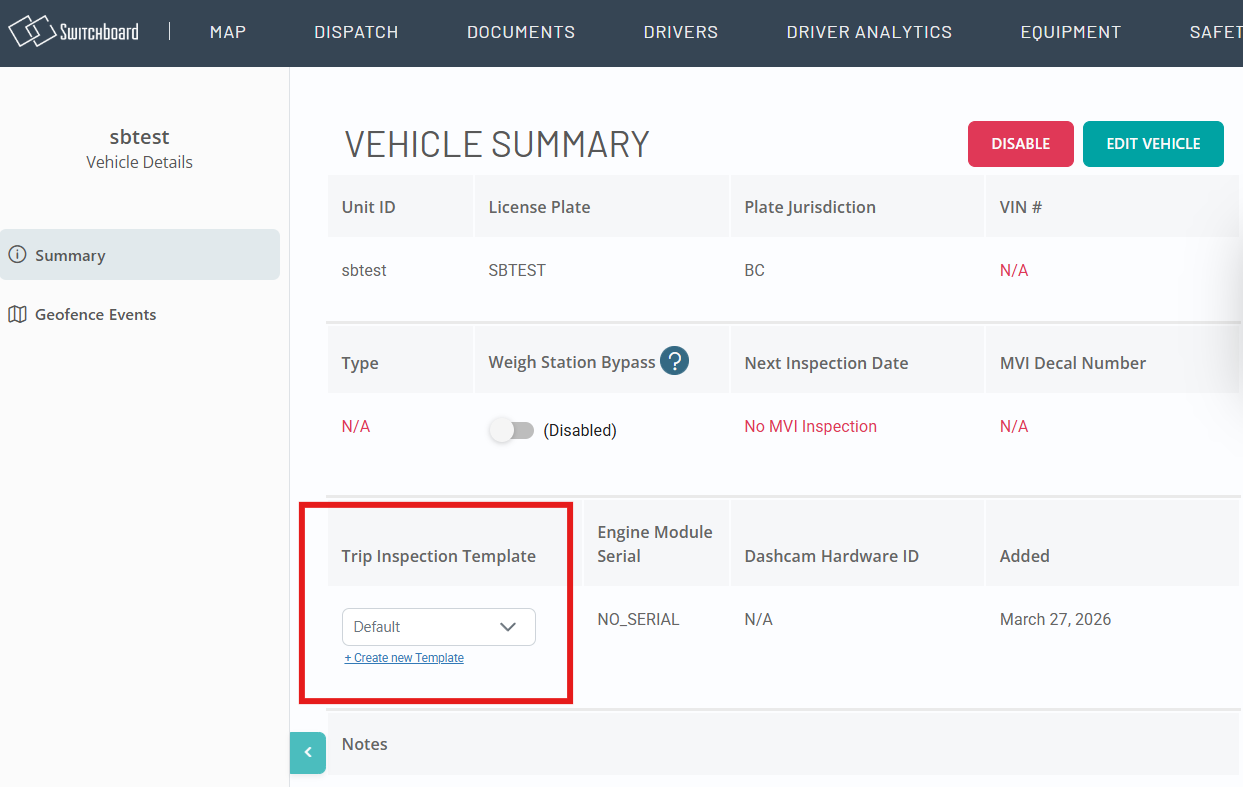
- Open the vehicle’s details page.
Create a New Inspection Template
- In the trip inspection section, you’ll see a default template already available.
- Select “Create New Template” to build a custom inspection.
Customize Inspection Items
- Choose from existing defect types to include in your template.
- To create a new inspection item:
- Click the “+” button below Available Defect Types.
- Add and save your custom defect.
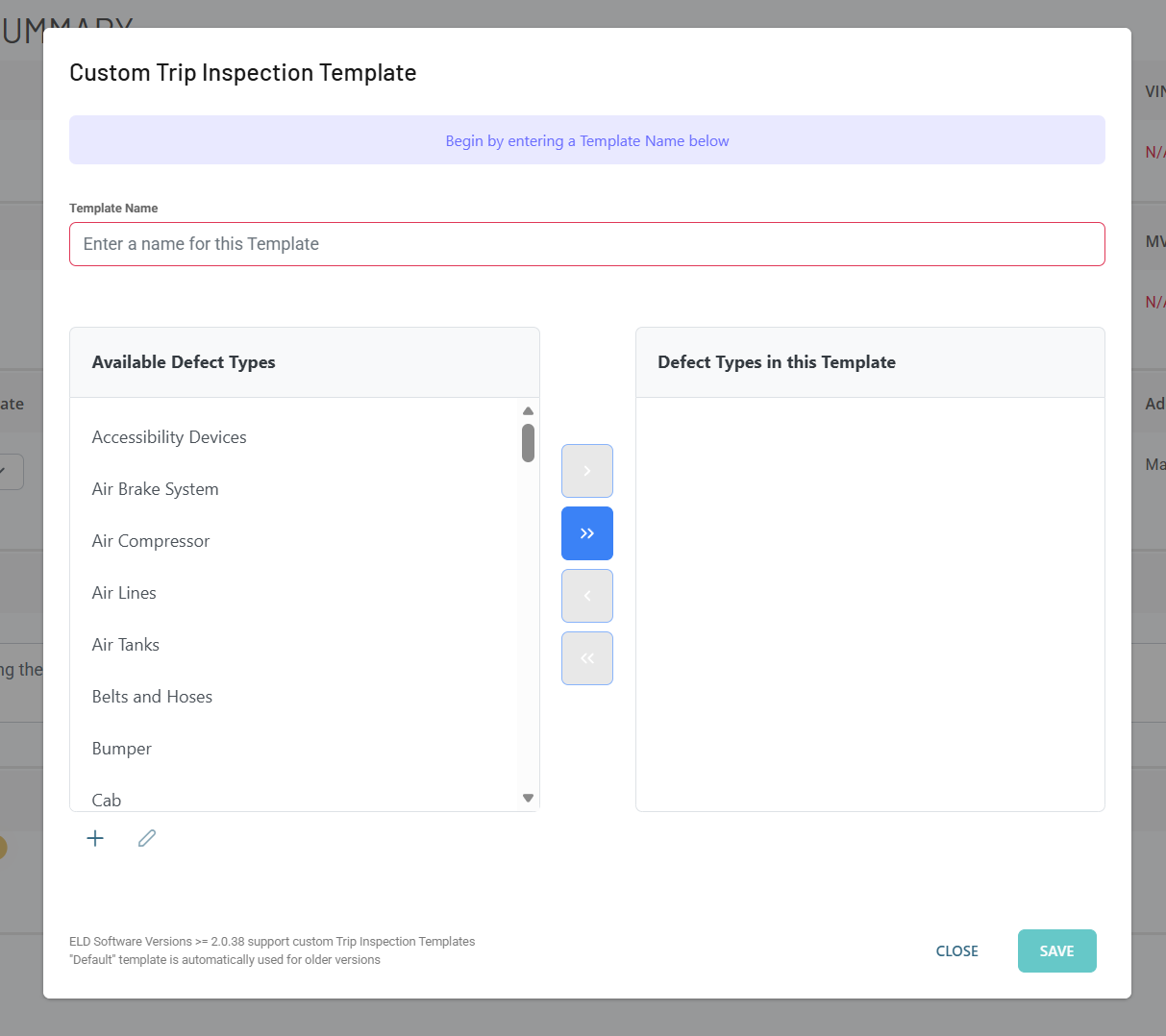
This allows you to tailor inspections to match specific vehicle requirements or company standards.
Assign Templates to Vehicles
- You can assign different templates to different vehicles.
- This is useful if your fleet includes multiple vehicle types with unique inspection needs.
Best Practices
- Keep templates clear and relevant to the specific vehicle.
- Avoid adding unnecessary items to ensure inspections stay efficient.
- Review and update templates regularly as your fleet or compliance requirements change.
By creating custom trip inspection templates, you can standardize inspections while maintaining flexibility across your fleet.
Was this article helpful?